Create a product in your catalog — its name, code, pack size, allergens, and storage — so the lots you receive or make have something to belong to.
On this page
Was this helpful?
Real help from real food people
Chef Diego runs a real food plant. If this page didn't get you there, tell us — a person reads every message.
You've taken on a new retail account, and the recipe you're scaling up calls for
a smoked paprika you've never carried before. Before you can order a case of it,
receive it at the dock, or build it into a batch, the paprika has to exist in
your catalog as its own . Adding it is describing the item, not counting stock: you're
giving every lot you receive later something to belong to. Open
Products and
select New to follow along.
Add a product
1
Open Products and select New
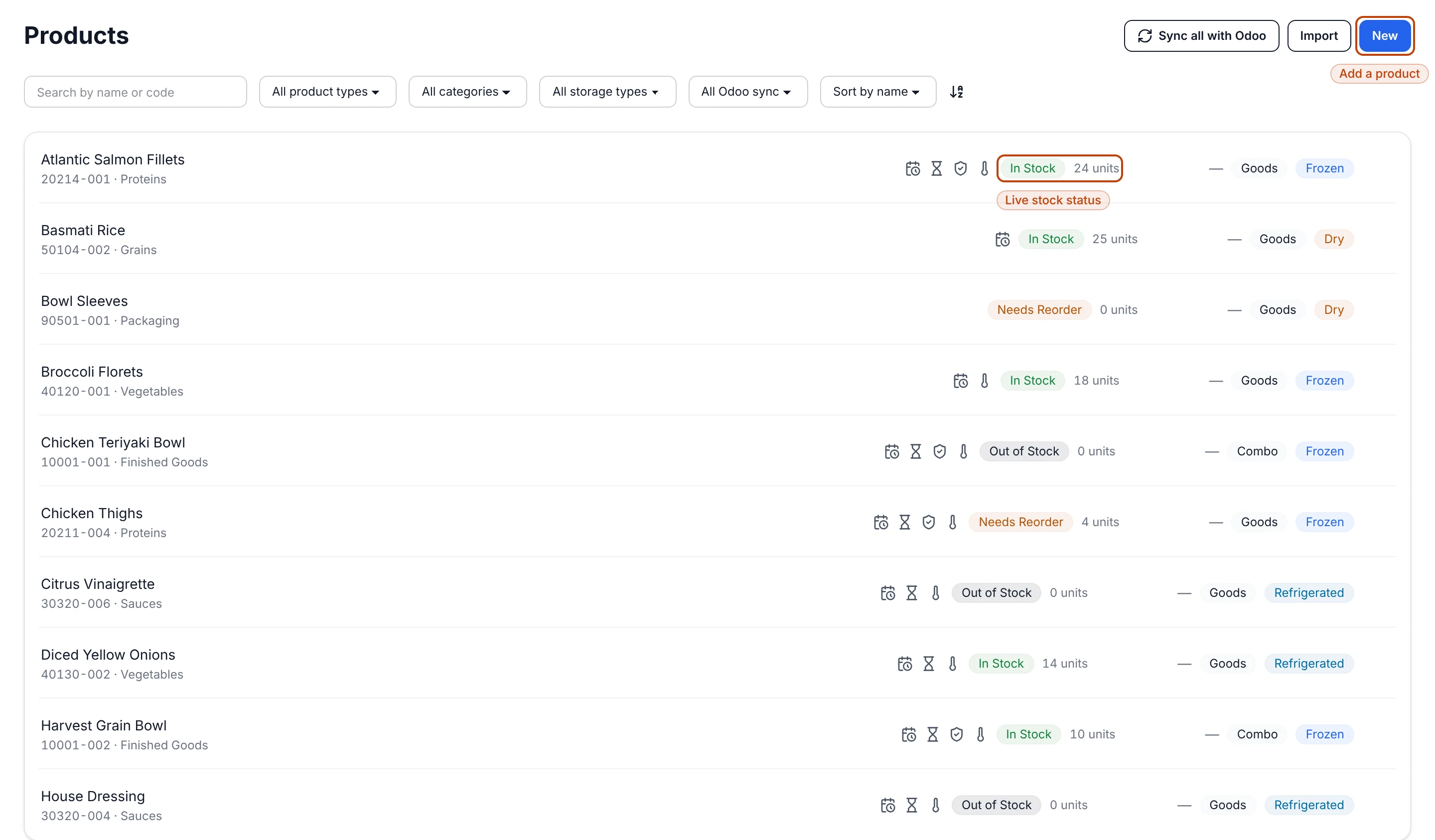
Open Inventory → Products from the top navigation. The list holds every
product in the company you're working in. Select New in the top corner to
open a blank product form.
The products list. Select New in the corner to add one; each product shows its live stock status, and every product you create lands back here.
2
Name and price it on General
The form opens on the General tab. Give the product a Product name and
a Product code — the code is what you'll search by and what reads under the
name on the list. Set the Product type — Goods for anything you
physically make or buy, Service or Combo for the rest — and a Unit
price (USD). Category and Description are optional, and Active
stays on so the product shows up everywhere you'll reach for it.
3
Set the pack and its unit on Specifications
Open the Specifications tab. Enter the Net weight per case and choose
its Weight unit — pounds, kilograms, grams, or ounces — so Bettr knows the
measure behind every case. Add Units per case and the Case type if you
pack in something other than a box. If the label promises a weight per unit,
type it into Net weight per unit with its own unit — that is the number a
recipe's arithmetic gets checked against later. The dimensions, ingredient
list, and country fields on this tab can wait until you have them.
4
Record allergens and storage on Allergens & Storage
Open the Allergens & Storage tab. Check every allergen the product contains
— milk, eggs, wheat, soybeans, and the rest of the nine — so it's on record
from the first day. Then pick the Storage type the product lives in:
Dry, Frozen, or Refrigerated, and more than one where it fits
more than one. Leave them all clear and the form says so — the record wears
No storage type until somebody sets one, and no spec sheet for it can be
approved meanwhile.
The Allergens checkboxes on the new-product form — check every one the product contains, since it carries exactly the boxes you tick.
5
Create the product
Select Create. Bettr saves the product and returns you to the products
list with your new item on it, showing 0 units — it holds no stock until you
receive or produce a lot of it.
No New button?
Adding products is a permission your role may not carry. If you don't see
New on the products list, ask an admin to grant your role the add-product
permission.
The least you have to fill in
Most of the form is optional. To save a product, you need only a handful of
fields:
Product name and Product code, on General.
Unit price, on General.
Net weight per case and its Weight unit, on Specifications.
Miss one and the form keeps you on the page and marks the tab that holds the
empty field, so you can jump straight to it. Everything else carries a sensible
default or waits until you have the answer.
The tabs you can come back to
Specifications also holds the product's dimensions, ingredient list,
certifications, and country of origin. Stock & Control holds cost, lead time,
shelf life, and minimum and maximum stock levels, plus the switches for
expiration tracking, QC approval, and a required certificate of analysis — the
settings behind reorder flags, expiry dates, and the QC a lot goes through. Fill
them in as the item settles into your operation. Each time you save, Bettr
records a new version of the product rather than typing over the last one, so
none of that history is lost — see How inventory works in
Bettr for why the whole catalog is kept
that way.
Editing a product later
You're never locked in. Open any product from the list to
change any field — the same
four tabs, the same form. To find the one you want among the rest, see the
Products reference.