Bring the workbook your plant already runs on, tell Bettr how it is written once, and take the recipes in as drafts.
On this page
Was this helpful?
Real help from real food people
Chef Diego runs a real food plant. If this page didn't get you there, tell us — a person reads every message.
Your recipes are already written down. They're in a workbook with a tab per
product, a header row wherever somebody put it, the batch yield typed next to a
word rather than under a column, and a U/M that says LBS on every line except
the two that say GAL. Retyping all of that is the part nobody has time for.
Bring the file instead: Bettr reads it, shows you what it made of it, and takes
every recipe in as a draft you can still change. Start at
Import recipes,
from Import on the Recipes page.
Kitchen+
Nothing lands until you have seen what it says. That's the whole shape of this:
the file is read, you check what it would do, and only then does it become
recipes.
Bring the file in
1
Open Recipes and select Import
Import sits beside New at the top of
Recipes. It
opens on a drop zone, a Read it through picker, and every import this
company has run before.
2
Choose the workbook
Drop the files on the box, or select them. Bettr takes an Excel workbook
(.xlsx or .xlsm), a CSV, or a machine-format recipe file (.json), up to
25MB, and you can bring several at once when the recipes are split across
files. One import brings spreadsheets or machine-format files, never both in
the same go.
3
Say how it should be read
The first time, leave Read it through on Read it for me — Bettr reads
the file and proposes what each tab and column means. Once you have saved a
, pick it
here and the file goes straight to the check. A machine-format file skips
this entirely: the picker is replaced by The machine format carries its own
shape, so there is nothing to map.
4
Select Read the file
Reading happens in the background, so a thirty-tab workbook doesn't tie up
the screen. A progress bar says which stage it's on, and the page moves on by
itself when it's done.
Past imports sits under the drop zone: the file each came from, when it
arrived, the setup it was read through — or A spreadsheet where nobody had
saved one yet, or The machine format for a file that stated its own shape —
how many recipes it carried, and where it got to. Landed means it's in.
Checked, not landed means it's waiting on you. An import somebody walked away
from picks up where it stopped when you select it.
Tell Bettr how the file is written
Map the file puts the workbook's own rows on top and Bettr's reading of them
below. Nothing lands from this screen. It exists so a wrong reading gets caught
while it is still a reading.
1
Check what each tab is
Every tab wears what Bettr made of it — A recipe, A list of recipes,
Skip this tab, or What is this tab? in the warning colour where it
would not guess. A tab read on terms of its own also wears Its own way.
Select a tab to open it; This tab is changes it. A cooking log or a
costing sheet belongs on Skip this tab.
2
Check what each column means
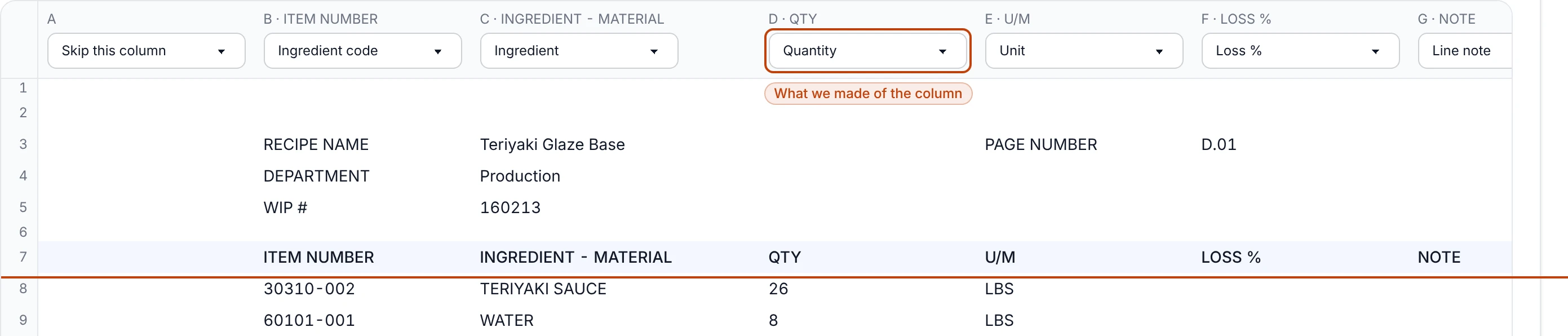
Over the file's own rows sits one picker per column: Ingredient,
Ingredient code, Quantity, Unit, Loss %, Loss weight,
Line note, or Skip this column. A column Bettr could not name reads
What is this column? in the warning colour and stays a question until you
answer it. Nothing is guessed quietly.
3
Say when a tab is written differently
Those pickers speak for every tab read the same way — Every tab read as a
recipe shares these columns. The tab somebody else typed, with its table
lower down and its own words over it, gets a reading of its own instead.
This tab reads differently gives it one; from then on it wears Its own
way beside its name in the tab list, and nothing you say on it touches the
other tabs. Read it like the rest puts it back. So does Skip this
tab, which drops the tab from the reading and forgets its own reading with
it — the badge goes, and so does the tab's place in the count the check
reports. If a setup still holds a reading for a tab nothing reads, that tab
says so: Nothing on this tab is read, and we still remember a reading of
its own for it from before.Forget that reading clears it.
A tab reading its own way says where its headings are. When they are words
Bettr already knows, it reports the row it found them on — Its headings
are on row 5, found by the words this tab writes them in. When they are
not, Its headings are on lists the file's own rows — Row 5 · CODE ·
INGREDIENT · AMOUNT · UOM — and you point at the right one, then name its
columns above the grid as usual.
4
Point at the numbers written beside a label
A recipe's name, its department and its batch yield are usually not in the
table at all — they sit beside a word, or under one. The numbers written
beside a label takes each of them: Right of a label for a name typed
next to RECIPE NAME, Below a label for a yield written under BATCH
YIELD, At a cell when it is always the same square. Read another
label adds the next one.
Point at Yield unit too, wherever the sheet writes it. A batch of 240 is
240 pounds on one tab and 240 portions on the next, and only the sheet says
which — with no cell for it, every batch is read as a weight.
5
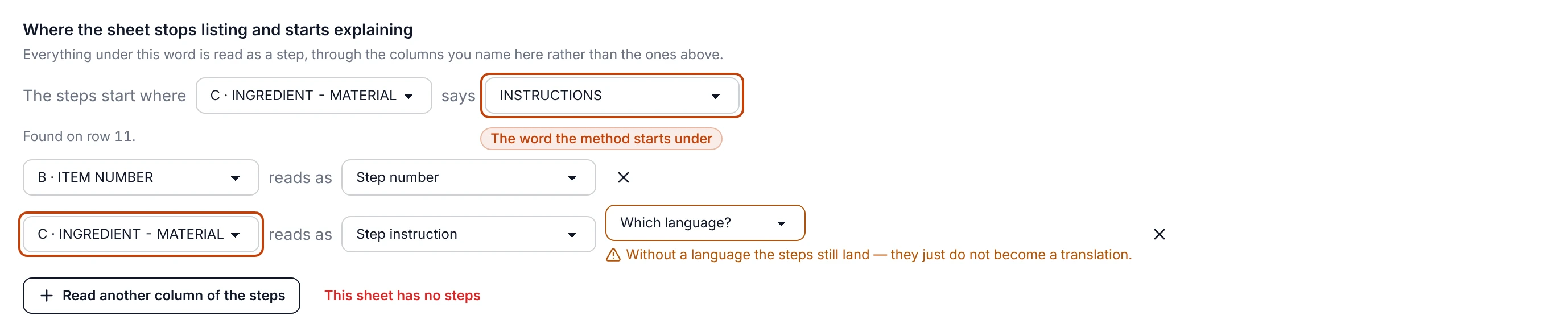
Say where the sheet stops listing and starts explaining
Most plants write the method as more rows under the line table, under a word
like INSTRUCTIONS. Say which column that word sits in and which word it
is, and Bettr reports the row it found it on. Then name the column carrying
the step number and the one carrying the text — read as steps through the
columns you name here, not the ones above. Name a column of probe readings
and a second picker asks which scale it is read on, Fahrenheit (°F) or
Celsius (°C): 74 is a cooked chicken on one and a warm room on the
other, and Bettr never reads a scale out of the numbers. This sheet has no
steps if the method lives somewhere else; the lines and the yield still
land.
6
Save it, or carry on
Save this mapping as takes a name — Plant workbook, The DNA — and
Save setup keeps it for every file of that shape after this one.
Continue goes to the check without saving a name. Either way Bettr reads
the file again through what you just said, from the copy it already holds:
correcting a mapping never means uploading again.
Once you have corrected something, the line under the name says where your
answer is going — Continue reads this file only — name it to keep what you
just said. with the box empty, Saving teaches "Plant workbook" what you
just said. when it is the setup this file came in through, and Saving
keeps this reading as "Night sheets" for the next file like it. for a name
you have not used before.
One picker per column, sitting above the file's own rows — the sheet's own header row on row 7, and what Bettr made of each column on top of it.
The steps block is the part worth slowing down for, because it is where a
spreadsheet stops behaving like a table.
Everything under INSTRUCTIONS is read as a step: the same column that carried ingredient names carries the instruction text, and the code column carries the step number.
The step text carries its language
A column read as Step instruction can name the language it is written in,
chosen from the languages your company reads. Name a second instruction column
and one workbook lands both languages together. Left blank, the steps still
land — they just do not become a translation. Bettr never reads a language out
of the words themselves.
A workbook that disagrees with itself
A file that grew by hand over years rarely agrees with itself. The header row
sits on row 3 on one tab and row 9 on the next. The topping the development
kitchen wrote calls its code column CODE where every other tab says ITEM
NUMBER. Bettr reads a tab that stands apart on its own terms and shows you
what it made of it; a column it still cannot name waits as What is this
column? rather than being guessed.
The tab a different hand typed, read on its own terms — its own header row, its own columns, and the way back to the reading the rest of the workbook shares.
A setup keeps both: the one reading every tab shares, and each odd tab's own,
remembered under the name written on that tab. Bring the same workbook back
through it and the mapping screen never opens — the check says 2 tabs, one of
them read its own way, 8 ingredient lines, and everything is already read the
way you said. Answer a workbook's mess once and it stays answered, however many
tabs it takes.
Plants rename tabs, though — a version bump, a line moved to another kitchen —
and a tab remembered under a name the workbook no longer writes would come in
short with nothing said about it. So the check owns up to a tab it took nothing
from and holds the landing shut — Nothing in this setup says what the tab
"Birria Fiesta V5" of plant-workbook-june.xlsx is, so nothing came in from it. Map
it again and say what that tab is, or skip it. A tab it does read as a recipe,
but finds none of its columns on, is named the same way: None of the columns
this setup reads are on the tab "Birria Fiesta V5" of plant-workbook-june.xlsx, so
no recipes came in from it. Map it again and give that tab a reading of its own,
or skip it.
Map it again is where you answer either one, and each tab opens on its own
question. A tab nothing speaks for wears What is this tab?, exactly as one
nobody has ever seen does. A tab already read as a recipe keeps that
answer and shows what is missing instead — We can find none of these columns on
this tab, so nothing would be read from it. If it is written its own way, say so
and give it its own reading.This tab reads differently gives it one;
Skip this tab leaves the tab out.
Check what it will do
Check the import is the screen the whole thing exists for. It says what would
land, recipe by recipe, before anything does.
Across the top is the split: how many are new, each born a V1 draft; how
many go into recipes you hold, differing from yours — arriving as its next
draft version; and how many are already yours, unchanged — nothing to
take in. Each card underneath says the same thing in full — New recipe · born
V1 draft, or Differs from yours — lands as V2 draft of "Ginger Rice
Pilaf", or Already yours — this is V1 of "Ginger Rice Pilaf", naming the
version that already holds it — with the lines, steps, department, batch yield
and the tab it came from beneath.
A recipe from a workbook finds the one you already hold by the name or the item
number the tab itself carries. A machine-format file carries the reference each
recipe left under as well, so a file your own company exported comes home to the
very recipes it was written from even after somebody renamed one; a file from
another company has no reference here, and the name and number decide as usual.
When that lands on the wrong recipe, Bring it in as a new recipe instead and
It belongs to a recipe you have move it either way, and the split moves with
it.
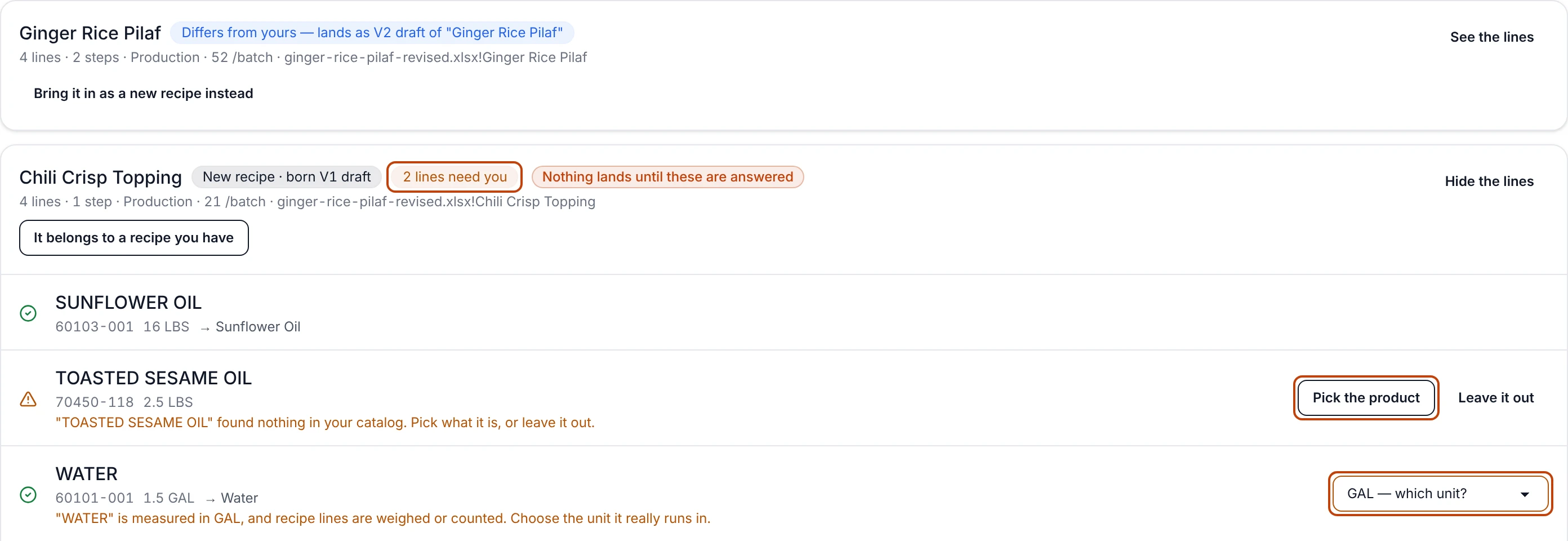
See the lines opens what the tab actually said: each ingredient's name and
code as typed, the quantity and unit as written, and what it landed on — →
Sunflower Oil. A recipe with something unanswered wears 2 lines need you
and opens itself.
Two recipes on the check: one arriving as the next draft of a recipe already held, one born new — and two lines nobody can answer for you.
Answer what Bettr will not guess
A line Bettr cannot place says so where the line is, and holds the whole import
shut until somebody settles it. The two you'll meet most:
A code your catalog does not carry."TOASTED SESAME OIL" found nothing in
your catalog. Pick what it is, or leave it out.Pick the product searches
your products and recipes in one list, and offers Add it to the catalog
when the thing genuinely isn't there yet. Leave it out drops the line from
what lands.
A line measured in something a recipe cannot use."WATER" is measured in
GAL, and recipe lines are weighed or counted. Choose the unit it really runs
in. The picker reads GAL — which unit? and lists the units you keep. A
volume is never converted behind your back: a gallon of oil and a gallon of
syrup are not the same weight, and only your floor knows which one this is.
Whatever you pick has to be something no other line of that recipe already is.
Point a line at the product the line above it carries and Bettr says so where the
line is — "ANNATTO PASTE" would come out as Jasmine Rice, which "JASMINE RICE"
already is. A product is weighed on one line — point this one at something else,
or leave it out. One product is weighed on one line, one sub-recipe goes in on
one line, and the amounts belong in a single row.
Some questions aren't yours to answer at the check, and Bettr says so rather than
picking one:
A file that contradicts itself comes back to you
Two tabs calling themselves the same recipe, one item number on two recipes, a
code sitting on two different things, one product weighed on two lines of the
same recipe — each stops the whole import and names what to fix. Correct the
workbook and bring it back. A doorway that quietly picked one of the two would
put a recipe on your floor that nobody wrote.
The button at the bottom wears the reason it's off. Once everything is settled it
reads plainly instead: Everything above lands as a draft. Nothing is approved
by this. When nothing in the file is coming as a draft, it says that instead —
Nothing above lands as a draft. Your versions stay as they are.
Land it
Land as drafts takes the import in, or Take it in when no draft is
coming. Components land before the recipes that name them, so a sub-recipe is on
the shelf by the time the recipe reaching for it arrives.
What arrived then lists every recipe that landed with the version it landed
as — v1 draft, v2 draft — each one a link to the recipe itself, with
Import another file and Go to recipes beneath. From there,
Version and approve a recipe is
the same walk it is for a recipe somebody typed.
Nothing arrives approved
Every recipe an import lands is a draft. Sign-offs never travel through a file
— a person on your side approves each version on the recipe page, exactly as
they would for one typed by hand. A recipe you already hold keeps its approved
version while its new draft waits.
Bring the same file back and nothing happens twice
Drop a workbook you've already taken in and the check reads already yours ·
Unchanged — nothing to take in, naming the version that holds it. Bettr
compares what the file says against every version the recipe carries, so a file
that hasn't changed lands nothing however many times it comes through — even when
the version holding it sits behind a newer draft.
Change one quantity in that workbook and the same file lands exactly one draft,
on the recipe it belongs to. That's what makes this safe to use as a habit: the
file on your shared drive stays the file your plant edits, and bringing it back
is how the change reaches Bettr.
The batch size is the one thing that moves without a draft, and the check says so
before it acts. Desired batch size is a lever the recipe remembers rather
than part of what a version says — scaling is looking, not editing. So a workbook
that comes back with nothing changed but that number still reads Already yours
— this is V1 of "Ginger Rice Pilaf", with a second badge beside it saying what
will happen: Desired batch size becomes 156. The split above reads
No drafts — 1 batch size still lands, and Take it in moves the number on
the recipe without writing a version, touching an approval, or asking anybody to
sign anything again — the screen that follows says Nothing arrived as a draft
rather than pretending one did. A workbook that carries no batch size at all
leaves the one you set alone.
A recipe that arrives whole
A machine-format file is what
Export recipes to a file writes, and
what a sister plant or a system that speaks it hands you. A spreadsheet tab
carries one state of a recipe; this file carries the recipe itself — every
version at the number the plant it left gave it, the steps in every language they
read them in, the storage and shelf-life facts, the control points and quality
checks, and the notes typed against each version.
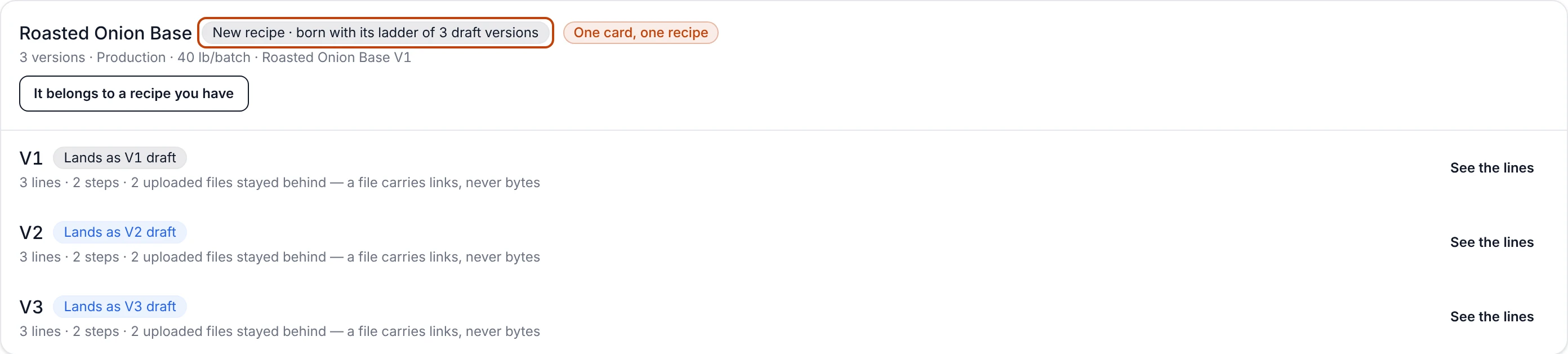
The check draws that as one card per recipe with its versions inside, rather than
as several recipes that happen to share a name. The card says what the whole
ladder does — New recipe · born with its ladder of 3 draft versions, or
1 version joins "Master Marinade" as a draft, or Already yours — every
version of "Master Marinade" — and each rung underneath says its own: Lands
as V2 draft, or Already yours at V2.
See the lines on a rung opens that version's own lines. Routing the card —
Bring it in as a new recipe instead, or It belongs to a recipe you have —
moves every rung together, so a ladder is one decision, not three.
A recipe arriving from a sister plant as one card with its three versions inside — each rung wearing the number it lands at here.
Photos and PDFs stay where they are
A recipe file carries links, never bytes. A step or a version carrying an
uploaded photo says so on its rung — 1 uploaded file stayed behind — a file
carries links, never bytes — so what did not travel is counted out loud
instead of quietly missing.
Change your mind about the mapping
Map it again on the check goes back to the mapping screen with the workbook
Bettr already holds. Say it differently, save, and the same stored file is read
again through the new reading — no second upload and no second copy of the file.
Change nothing and nothing happens: the import you were looking at is the one you
come back to.
Throw an import away
Throw this import away discards the whole thing: nothing landed from it, and
nothing will. Everything you told Bettr on that screen goes with it, and the
import leaves Past imports. The workbook itself is untouched — bring it back
once it's fixed.