Link your QuickBooks Online company to Bettr Manager so the floor and your books point at the same business, and read the connection's health from the page.
On this page
Was this helpful?
Real help from real food people
Chef Diego runs a real food plant. If this page didn't get you there, tell us — a person reads every message.
Your books already live in QuickBooks Online, and Bettr Manager doesn't ask you
to move off them. Connecting QuickBooks links that same company to Bettr, so your
operations and your accounting are tied to one business rather than two systems
that have never met. You set it up once, from the
Integrations hub under
Settings.
Connect QuickBooks Online
1
Open Integrations
In the sidebar, open Settings → Integrations. Under Accounting
systems you'll see QuickBooks Online, with a badge reading Not
connected until you link it.
2
Open the QuickBooks page
Select the QuickBooks Online row to open its
connection page, then
select Connect QuickBooks.
3
Sign in and approve at Intuit
Bettr hands you off to Intuit's own sign-in. Sign in to QuickBooks and
approve access for the company whose books you keep — Bettr never sees your
QuickBooks password. Intuit sends you back when you're done.
4
Confirm it took
You land back on the QuickBooks page reading Connected, showing the
company you linked and its .
You need permission to connect it
Connecting and disconnecting QuickBooks takes the Configure the QuickBooks
connection permission. Without it, the page tells you QuickBooks isn't
connected yet and to ask a teammate who has that permission to set it up.
What Bettr keeps
Connecting links the account — it doesn't move your invoices or your ledger.
What Bettr stores is the connection itself, so it knows which set of books
you're tied to:
Company — the QuickBooks company name, so you can tell at a glance which
books are linked.
Realm ID — QuickBooks' own id for that company.
Bettr keeps the connection alive on its own, refreshing its access in the
background so you don't have to sign in to Intuit again. Connecting also checks
off the accounting step on your setup checklist —
the one that asks you to connect QuickBooks or Odoo.
Check the connection whenever you want
The Connection card carries a Test connection button. Select it and Bettr
asks QuickBooks, right then, which company it is talking to. A green message
naming your company means the link is live. Anything else tells you what went
wrong in plain words — QuickBooks turned the access down, refused the request,
wasn't answering — and what to do about it. Testing takes the same Configure
the QuickBooks connection permission the rest of the page does.
Every test is kept under Test history, right below the card: when it ran, who
ran it, whether it succeeded or failed, and on a failure the same plain-words
reason. So a teammate who tested at 6am and found the link down leaves a record,
rather than a message only they saw.
When a renewal hits trouble
Bettr renews its Intuit access in the background, and QuickBooks doesn't always
answer. When the last renewal timed out, wasn't answered, was turned down, or
came back unreadable, the badge reads Renewing access and a line under it says
which of those happened. The link still works, and Bettr keeps trying on its own
— on most of those causes there is nothing for you to do. If the state doesn't
clear, the line tells you to reconnect.
When access needs reconnecting
If the link dies outright — access was revoked on the QuickBooks side, or it
lapsed — the connection flips to Needs reconnect, and the page names the
cause:
Access expired. Nothing refreshed the link in time. Select Reconnect
and sign in to Intuit again.
QuickBooks revoked the access. Someone withdrew Bettr's approval on the
QuickBooks side. Reconnect puts it back.
QuickBooks turned down Bettr's own credentials. This one is on us, not on
your books, so reconnecting won't clear it. Write to support and we'll sort it
out — the page leaves the Reconnect button off so you don't chase it.
The Integrations hub flags the same trouble as Needs attention, with the cause
on the line beneath it, so you catch it before it gets in your way.
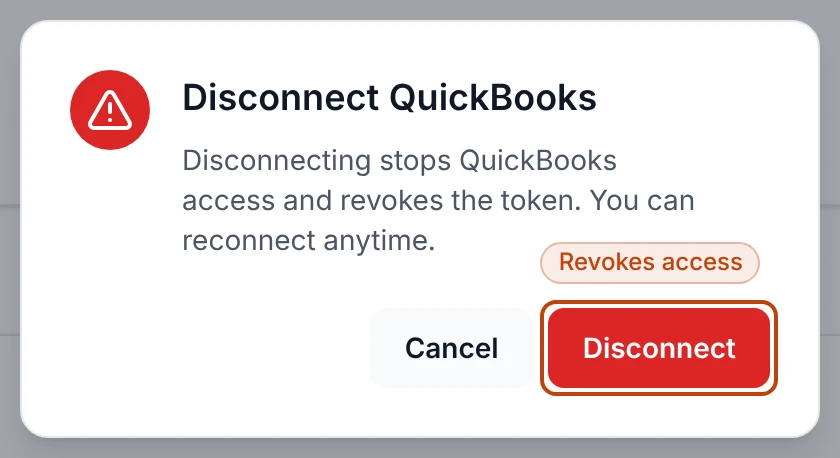
Disconnect QuickBooks
To unlink QuickBooks, open the QuickBooks page and select Disconnect. Bettr
asks you to confirm, then revokes its access and drops the connection back to
Not connected.
Confirming a disconnect. Bettr revokes its QuickBooks access, and you can reconnect whenever you're ready.
Disconnecting is reversible. Nothing about your QuickBooks books changes, and you
can connect again anytime by starting the flow over.