Every part of the Integrations hub and the QuickBooks and Odoo connections — what each row shows, the health states behind each connection, what flows between the systems, and who can manage them.
On this page
Was this helpful?
Real help from real food people
Chef Diego runs a real food plant. If this page didn't get you there, tell us — a person reads every message.
The Integrations hub is where Bettr Manager meets the accounting system you
already run on — QuickBooks Online for your books, Odoo for products, vendors,
and purchasing. This page describes each row on the hub, the fields and states
behind each connection, what flows between the two systems, and the permissions
that gate all of it. Open
Integrations under
Settings to read along.
The hub
Under Settings → Integrations, an Accounting systems section lists the
connections your company can use, one row each:
QuickBooks Online — "Accounting and bookkeeping." Links your books so your
operations and your accounting point at one business.
Odoo — "Products, vendors, and purchase orders." Brings that data into
Bettr so nobody re-keys it.
Each row carries a badge beside its name, a line under it saying where that
connection stands right now, and opens its own connection page when you select
it. The hub refreshes itself while you watch, so a connection that changes state
changes here without a reload. There are three badges:
Connected — the connection is live. The line under it names what it is
linked to: your QuickBooks company, or your Odoo web address. If Bettr's
background renewal of QuickBooks access hit trouble on its last try, the line
says so and says whether there's anything for you to do — the badge stays
Connected because the link still works.
Needs attention — something is wrong and it is yours to fix. The line names
the cause in plain words and, for QuickBooks, which of the three reconnect
causes below it is.
Not connected — nothing is linked yet.
Which rows you see depends on your access. QuickBooks shows for anyone who can
view the QuickBooks connection; Odoo shows for anyone who can view the Odoo
connection and only in a company with the Purchasing module on. If neither is
available to you, the hub reads "You don't have access to any integrations yet."
QuickBooks Online
Open QuickBooks Online for
the connection itself. It sits in one of four states, named by the badge in the
Connection panel:
Not connected — nothing is linked. If you can configure it, a Connect
QuickBooks button starts the sign-in at Intuit; if you can't, the page tells
you to ask a teammate who holds the Configure the QuickBooks connection
permission.
Connected — the books are linked. The Connection panel shows the two
things Bettr keeps, with a Test connection button in its header and a
Disconnect button below them.
Renewing access — the link still works, but the last time Bettr renewed its
Intuit access QuickBooks didn't answer, took too long, couldn't be reached,
turned the request down, refused it for this company, or sent back something
Bettr couldn't read. Bettr keeps trying on its own, and a line under the panel
header names which of those happened. On the first three there is nothing for
you to do; on the two QuickBooks turned down, the line says to reconnect if the
state doesn't clear; on the unreadable answer, it says to write to support if it
stays that way.
Needs reconnect — the link is dead until someone signs in again. A warning
names which of the three causes below it is, and a Reconnect button walks
you back through the same Intuit sign-in — except on the credentials case,
where reconnecting can't help and the warning points you at support instead.
Renewing access and Needs reconnect are deliberately different states, and
Bettr never dresses one as the other: the first is a hiccup Bettr is working
through by itself, the second is dead access waiting on you.
Connecting links the account — it doesn't move your invoices or your ledger. What
Bettr stores is the connection itself:
Company — the QuickBooks company name, so you can tell which set of books is
linked.
Realm ID — QuickBooks' own id for that company, shown in a monospace line.
Once connected, Bettr keeps the link alive on its own, refreshing its Intuit
access in the background so you don't sign in again. Disconnecting revokes that
access and drops the connection back to Not connected — nothing about your
QuickBooks books changes, and you can connect again anytime.
Reconnect causes
When the connection reads Needs reconnect, the warning names exactly one
cause:
Access expired. Nothing renewed the link in time, so it ran out. Reconnect.
QuickBooks revoked the access. Bettr's approval was withdrawn on the
QuickBooks side. Reconnect.
QuickBooks turned down Bettr's own credentials. This one is on Bettr, not on
your books, so reconnecting can't clear it — the page leaves the Reconnect
button off and points you at support.
Test connection and test history
Test connection asks QuickBooks, right then, which company Bettr is talking
to. It takes the Configure the QuickBooks connection permission, and it
reports back twice: a message across the top of the page, and a row in Test
history below the panel.
Every test is kept, so the record survives the message. Each row carries when it
ran, who ran it, and its outcome:
Succeeded — QuickBooks answered, and the row names the company it answered
for.
Failed — QuickBooks turned the request down, refused it for this company,
wasn't answering, took too long, couldn't be reached, or sent back something
Bettr couldn't read. The row says which in plain words and what to do about it.
Running — the test is still in flight.
Didn't finish — Bettr stopped before QuickBooks answered, so the test never
reached a verdict. Run it again.
Anyone who can view the connection can read the history; only someone who can
configure it can add to it. With no tests yet, the section reads "No connection
tests yet."
Odoo
Open Odoo for its connection.
Odoo carries purchasing data — products, vendors, pricing, and purchase orders —
so it only appears once the Purchasing module is on, which is why it sits on the
Kitchen plan and up rather than every plan. Kitchen+
When nothing is connected, the page shows a setup form if you can configure it,
or asks you to find a teammate who holds the Configure the Odoo connection
permission. Once connected, four sections make up the page.
Connection
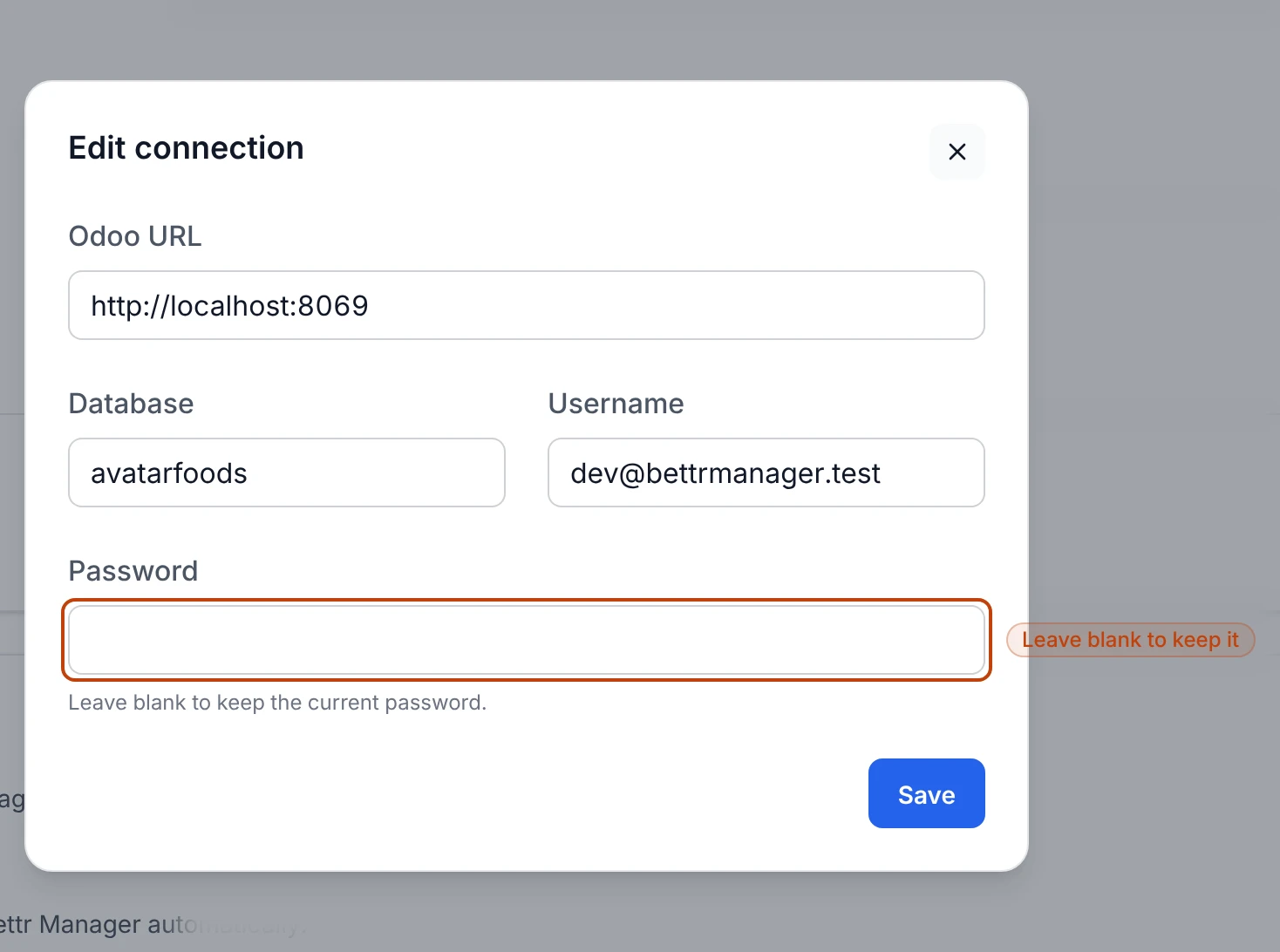
The Connection panel holds the credentials Bettr uses to reach your Odoo
server, with Edit and Test connection buttons for anyone who can
configure it:
Odoo URL — the web address you sign in to Odoo at.
Database — your Odoo database name, in a monospace line.
Username — the login Bettr uses to read your data.
Password — set when you connect and stored encrypted; it's never shown
again. On the edit form, leaving it blank keeps the current one.
Test connection reaches your Odoo server and asks it to accept the login.
Every test is kept, and the newest one sits at the bottom of the panel behind a
Last test badge, with the time it ran:
Connected — Odoo answered and took the login, and the line names the Odoo
server version.
Odoo answered, but turned down the login — the address is right and the
database, username, or password is not.
Bettr couldn't reach your Odoo server at all — nothing answered, so the URL
or the server itself is the place to look.
This test never came back — Bettr stopped before Odoo answered, so the test
says nothing about your setup. Run it again.
Earlier tests sit under an Earlier tests disclosure, so you can see whether a
failure is new. Until anyone tests, the panel reads "This connection hasn't been
tested yet."
The Odoo connection's fields on the edit form; a blank password keeps the one already saved.
Webhook
The Webhook panel holds a URL that belongs to your organization. A
keeps
the two systems in step between pulls. A Copy button grabs it, and a short set
of steps explains adding it in Odoo. Regenerate URL replaces it — the old URL
stops working right away, so a new one has to go back into Odoo or inbound updates
stop.
A badge at the top of the panel says whether anything is arriving:
Receiving — Odoo has posted recently, and the line names how long ago the
last update landed.
Quiet — nothing has arrived for over a week, which is how a webhook that
stopped working shows itself.
Nothing yet — Odoo has never posted to this URL.
Two more things show here when they apply. If Odoo posts to a URL that has since
been replaced, the panel says when that last happened and tells you to put the
current URL back into Odoo — the updates behind those posts did not come in, and
the notice clears itself as soon as an update lands on the current URL. And
updates Bettr took in but could not apply are listed with what each was about and
what to do: a record to open and save again in Odoo, a company to give an Odoo
company ID, a group to pull before the record can land, a payload the webhook is
sending in the wrong shape, or a kind of record Bettr doesn't take in at all.
The URL, its steps, and Regenerate URL need the Configure the Odoo
connection permission; the badge and the list of problems show to anyone who can
view the connection.
Pull and pull history
A brings
Odoo data across in the groups you choose. The Pull from Odoo panel offers
four:
Companies
Products
Vendors
Vendor pricing
A pull looks for what you already have before it adds anything. An Odoo product
whose product code matches one of your products, or an Odoo partner whose email
address matches one of your contacts, links to that record and updates it instead
of arriving as a second copy. The match has to be exact and has to be the only one
in the company being pulled; a code or address two of your records share, or one
neither carries, leaves the Odoo record to come in on its own.
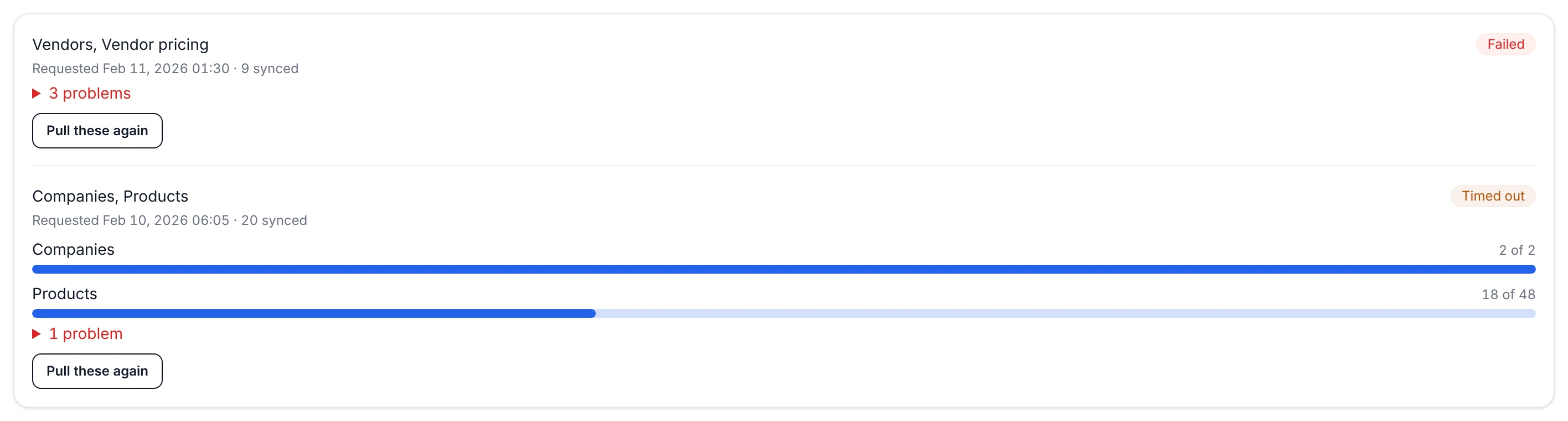
Tick the groups and start it, and each run lands under Pull history with the
groups it covered, a Succeeded, Failed, Running, or Timed out
badge, when it was requested, how many records synced so far, and any problems to
open and read. While a run is unfinished, a bar per group climbs from zero to the
number of records that group has in Odoo, so a long pull shows progress instead of
sitting silent. Timed out means the run hasn't reported anything for over half
an hour; its bars stay put at wherever it stopped. Each problem says which group
or which Odoo record it concerns and what to do next; a problem a later attempt of
the same pull already put right says so instead. Pull these again on any run
that isn't still working starts a new pull over the same groups. With no runs yet,
it reads "No pulls found."
Two runs in the pull history: one failed with three problems to open, and one that stopped reporting with its bars left where each group got to.
Stock checks
A stock check compares every Odoo-linked product's on-hand quantity in Bettr
against Odoo's, in one sweep. Check stock now starts one, and the same check
runs from the Sync all with Odoo action on the products list — either way the
run shows up here, newest first, with how many products it covered and when it
started. A run that is still working shows a bar of products compared against the
total, and each finished run carries one of these:
Succeeded — every linked product was compared.
Finished with problems — the sweep ran to the end, but some products could
not be compared. It names them so you can confirm they're still linked in Odoo.
Failed — the sweep stopped before it compared everything.
Timed out — the sweep stopped reporting before it finished.
Skipped — Odoo was disconnected before the check could start.
Per-product results — In sync, Divergence, Not checked — live on the
products list, not here. The section shows to anyone who can run a check; with no
runs yet, it reads "No stock checks found."
What flows between the systems
The two integrations do different jobs:
QuickBooks links your books. Today that means Bettr holds the connection —
which company, which realm — so operations and accounting are tied to one
business. It doesn't move invoices or ledger entries.
Odoo brings operational data in. A pull imports the companies, products,
vendors, and vendor pricing you pick, on demand; the webhook carries product,
vendor, and purchase-order changes as they happen, so an order raised in Odoo
shows up in Bettr without a manual pull.
Who can manage integrations
Each integration has a view permission and a configure permission, both
under Integrations in a role's permissions:
View the Odoo connection and View the QuickBooks connection — see the
connection and its status.
Configure the Odoo connection and Configure the QuickBooks connection —
connect, edit, test, pull, disconnect, and regenerate. Without it, the
connection page tells a viewer to ask a teammate who has it.
Viewing Odoo also depends on the Purchasing module being on in the company you're
working in; without it, the Odoo row and page don't appear at all.