Bettr Manager
DocsUniversity
Sign in
Getting startedHow Bettr is organizedChoose your planStart your subscriptionSign in to BettrFind your way around BettrFinish setting up BettrGet help when you're stuckPlans and pricing referenceHome dashboard referenceSigning in and your session referenceGetting help reference
InventoryHow inventory works in BettrAdd a productEdit a product and attach its documentsImport products from a spreadsheetReconcile a product's stockOrganize products into groupsLook up a lotSet up warehouse locationsAdd stock by handLoad your opening inventoryMove stock between locationsRun an inventory countReview and apply count adjustmentsTrace stock movementsLog waste and shrinkLog early kitchen returnsProducts referenceProduct groups referenceStock items referenceStock locations referenceInventory counts referenceStock movements referenceWaste records referenceEarly kitchen returns reference
Purchasing & receivingHow purchasing and receiving fit togetherCreate a purchase orderApprove or reject a purchase orderDuplicate or memorize a purchase orderSet vendor prices for a productReceive a purchase orderRun QC on a receiptPut away received stockPrint lot labelsRecord an inbound truck inspectionReturn stock to a supplierPurchase orders referenceVendor pricing referenceReceiving referenceSupplier returns reference
ProductionHow production works in BettrCreate a recipeImport recipes from a spreadsheetExport recipes to a fileVersion and approve a recipeAttach recipe documents, photos and videosApprove and print a product spec sheetSet up equipment and equipment groupsCreate a production plan and review needsSchedule a plan into runsPlan capacity on the master calendarOrder your production schedulePick ingredients for scheduled productionRead the demand dashboardStart a production runWeigh ingredients into a batchRecord batch outputLog cooking and cooling temperaturesReport an equipment failureRecord staff attendance on a runPrint labels and export batch recordsManage work-in-progress lotsSend kitchen stock back to the warehouseRecipes referenceEquipment and equipment groups referenceProduction planning referenceMaster calendar referenceProduction scheduling referenceDemand dashboard referenceProduction run referenceWIP inventory referenceKitchen returns reference
Sales & shippingHow sales and shipping flowCreate a sales orderApprove or reject a sales orderPrepare a sales orderPick stock to a sales orderBuild and ship a shipmentRecord an outbound truck shipmentGenerate an invoice from a sales orderSales orders referencePicking reference
Invoices & billingHow billing worksCreate an invoiceSee and change your planManage billing in the customer portalInvoices referenceYour subscription referenceYour contract, data, and privacy reference
Team & permissionsHow access and permissions workAdd people to your companiesSet a user's role and permissionsCreate and edit rolesOrganize people into departmentsAdd and manage employeesPlan who works each dayUpdate your profileRoles and permissionsDepartmentsEmployeesStaff scheduleYour profile
Company settings & integrationsHow company settings and integrations workAdd and manage companiesSet the languages your floor readsSet the levels your floor counts byKeep your customers and vendors in contactsValidate a vendor's compliance documentsConfigure notificationsStay on top of your notificationsConnect QuickBooksConnect OdooCompanies referenceContacts referenceNotifications referenceIntegrations reference
Browse docs
Getting startedHow Bettr is organizedChoose your planStart your subscriptionSign in to BettrFind your way around BettrFinish setting up BettrGet help when you're stuckPlans and pricing referenceHome dashboard referenceSigning in and your session referenceGetting help reference
InventoryHow inventory works in BettrAdd a productEdit a product and attach its documentsImport products from a spreadsheetReconcile a product's stockOrganize products into groupsLook up a lotSet up warehouse locationsAdd stock by handLoad your opening inventoryMove stock between locationsRun an inventory countReview and apply count adjustmentsTrace stock movementsLog waste and shrinkLog early kitchen returnsProducts referenceProduct groups referenceStock items referenceStock locations referenceInventory counts referenceStock movements referenceWaste records referenceEarly kitchen returns reference
Purchasing & receivingHow purchasing and receiving fit togetherCreate a purchase orderApprove or reject a purchase orderDuplicate or memorize a purchase orderSet vendor prices for a productReceive a purchase orderRun QC on a receiptPut away received stockPrint lot labelsRecord an inbound truck inspectionReturn stock to a supplierPurchase orders referenceVendor pricing referenceReceiving referenceSupplier returns reference
ProductionHow production works in BettrCreate a recipeImport recipes from a spreadsheetExport recipes to a fileVersion and approve a recipeAttach recipe documents, photos and videosApprove and print a product spec sheetSet up equipment and equipment groupsCreate a production plan and review needsSchedule a plan into runsPlan capacity on the master calendarOrder your production schedulePick ingredients for scheduled productionRead the demand dashboardStart a production runWeigh ingredients into a batchRecord batch outputLog cooking and cooling temperaturesReport an equipment failureRecord staff attendance on a runPrint labels and export batch recordsManage work-in-progress lotsSend kitchen stock back to the warehouseRecipes referenceEquipment and equipment groups referenceProduction planning referenceMaster calendar referenceProduction scheduling referenceDemand dashboard referenceProduction run referenceWIP inventory referenceKitchen returns reference
Sales & shippingHow sales and shipping flowCreate a sales orderApprove or reject a sales orderPrepare a sales orderPick stock to a sales orderBuild and ship a shipmentRecord an outbound truck shipmentGenerate an invoice from a sales orderSales orders referencePicking reference
Invoices & billingHow billing worksCreate an invoiceSee and change your planManage billing in the customer portalInvoices referenceYour subscription referenceYour contract, data, and privacy reference
Team & permissionsHow access and permissions workAdd people to your companiesSet a user's role and permissionsCreate and edit rolesOrganize people into departmentsAdd and manage employeesPlan who works each dayUpdate your profileRoles and permissionsDepartmentsEmployeesStaff scheduleYour profile
Company settings & integrationsHow company settings and integrations workAdd and manage companiesSet the languages your floor readsSet the levels your floor counts byKeep your customers and vendors in contactsValidate a vendor's compliance documentsConfigure notificationsStay on top of your notificationsConnect QuickBooksConnect OdooCompanies referenceContacts referenceNotifications referenceIntegrations reference
Docs›Company settings & integrations›Notifications reference

Notifications reference

Every part of Bettr Manager's notifications — the event types you turn on and how they're worded, the recipient rules that route each one, and the feed where they land — plus the states, controls, and permissions behind them.

On this page
  • The notification types list
  • A notification type's fields
  • The event catalog
  • The notification recipients list
  • A recipient rule's fields
  • Who a rule reaches
  • Your notifications feed
  • What a notification carries
  • One notice for a whole import
  • New, Read, and Actioned
  • How types, recipients, and notifications fit together
  • Who can manage notifications
  • Related
Was this helpful?
Chef Diego

Real help from real food people

Chef Diego runs a real food plant. If this page didn't get you there, tell us — a person reads every message.

PreviousContacts referenceNextIntegrations reference

On this page

  • The notification types list
  • A notification type's fields
  • The event catalog
  • The notification recipients list
  • A recipient rule's fields
  • Who a rule reaches
  • Your notifications feed
  • What a notification carries
  • One notice for a whole import
  • New, Read, and Actioned
  • How types, recipients, and notifications fit together
  • Who can manage notifications
  • Related
Bettr Manager

The operations platform for food manufacturers.

DocsUniversityQuestions? Talk to us.TermsPrivacy

Notifications are how Bettr Manager tells the right person the moment something happens on the floor — a receipt sitting on a QC hold, an order out the door — instead of them finding out a shift too late. There are three parts to it: the event types you turn on, the rules that route each type to people, and the feed where the notices land. This page describes each field, column, and state across the three, and where every value comes from. Open Notification types to read along.

The notification types list

A pairs a single event — a purchase order approved, a receipt on a QC hold, a sales order shipped — with the words your team reads. Bettr ships the events; a type is the one you've turned on and worded for your company.

Each row on the list carries:

  • The title you gave the type, tokens and all.
  • An Active or Inactive badge.
  • A line beneath, joined by dots: the event key (like receiving_item_qc_pending), the action URL the notice points at, and the date you created it.

Above the list, Search filters by title or key, and Filter by status limits to Active or Inactive, or leaves it on All statuses. When the list runs past 20, a per-page control and pagination appear beneath it. With nothing to show, it reads "No notification types found." New opens a blank type.

A notification type's fields

The New and Edit screens hold the same fields under two headings.

Under Basic information:

  • Notification key — the event that fires the notice, chosen through the Select button, not typed. You pick it once; the list then shows it as the event key beneath the title.
  • Title — required. The headline the recipient reads.
  • Text — required. The body beneath the headline.

Both Title and Text accept tokens in curly braces — {order_number}, {customer_name}, {sales_order_number} — that Bettr swaps for the record's real value when the event fires. A title of QC hold on {order_number} lands as QC hold on PO-000010.

Under Behavior:

  • Action URL — where opening the notification takes someone. Bettr fills it with the right record path the moment you pick an event, so you rarely touch it.
  • Active — on by default. An active type fires; an inactive one stays on the list but sends nothing.

Editing an existing type adds a Danger zone with Delete notification type.

The event catalog

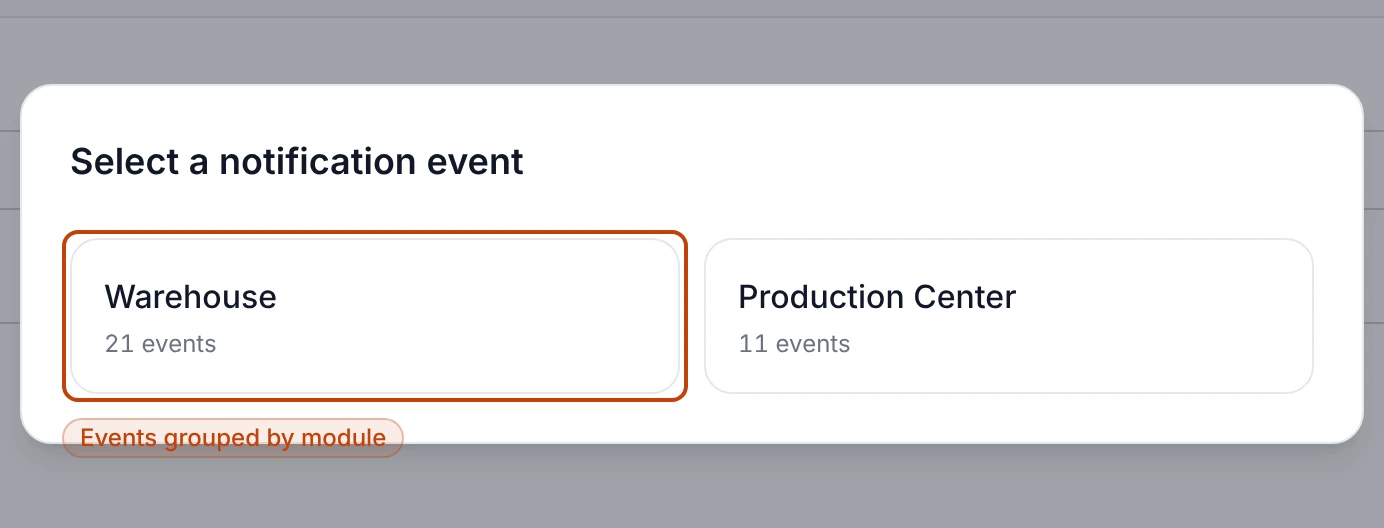
Behind the Select button is every event Bettr can fire, grouped under two modules — Warehouse and Production Center — and within each, by the record the event is about, like Purchase Order, Receiving Item, or Sales Order. Each event carries an About note spelling out exactly what fires it, and a Search events box narrows the list. An event you've already turned on for the company reads Already configured instead of a Select button, so you never double one up.

The notification event picker on its two modules, Warehouse and Production Center, each showing how many events it holds.
The event picker opens on its two modules — Warehouse and Production Center — with the count of events each one holds.

The notification recipients list

A notification type on its own reaches no one. A draws the line between a type and the team that hears it. Open Notification recipients to manage them.

Each row carries:

  • The title of the notification type the rule delivers.
  • An Active or Inactive badge.
  • A line beneath: the recipient type — Users, Departments, or Roles — and the date you created the rule.

The controls match the types list: Search by type or recipient, Filter by status, and pagination when the list runs long. New opens a blank rule.

A recipient rule's fields

  • Notification type — the type this rule delivers, chosen through Select. It's locked once you save the rule: you can change who's on it, but not which type it belongs to. To move recipients onto a different type, delete the rule and add a new one.
  • Recipient type — Users, Departments, or Roles. The checklist below swaps to match, and you check everyone the rule should reach.
  • Active — on by default. An inactive rule stops delivering without losing who was on it.

Editing a rule adds a Danger zone with Delete recipient rule.

Who a rule reaches

The three recipient types decide how far a notification travels and how well it holds up as your team changes:

  • Users name specific people — the plant manager, the QA lead you always copy.
  • Departments reach everyone in a department, like Logistics or Production, so the rule follows the team as people join or leave it.
  • Roles reach everyone who holds a role, like Quality or Kitchen Lead, so who gets alerted stays in step with who has the access to act.

More than one rule can point at the same type — the Quality role for the whole team, plus a couple of individuals who want a personal copy.

Your notifications feed

Open Notifications for the full feed, or reach for the bell in the top bar from any screen. Each company keeps its own inbox: switch companies in the top bar and the feed follows, so a notice for one plant never clutters another's.

Above the feed, Refresh pulls in anything that's arrived since you opened the page, and Mark all as read shows only while you have something unread. The feed pages in 20s, newest first. When there's nothing waiting, it reads "You're all caught up!"

What a notification carries

Every notice on the feed shows the same parts:

  • Title and message — the headline and body from the type, with the record's real numbers filled into the tokens, like QC hold on PO-000010. A notice for a whole import is the one exception, and words itself (below).
  • When it arrived — a plain relative time, from just now to 2 hours ago to a date once it's older.
  • A status — where the notice stands with you, shown as a badge and a marker down its left edge.
  • View more — appears when the notification points at a record; it's the same jump you get by opening the notice.

One notice for a whole import

An event is usually about one record, and the words you wrote for the type carry that record's values. An import is not: a spreadsheet that fills forty products would otherwise land forty notices in the same inbox. Everyone the Product updated event reaches hears it once instead — An import updated 40 products, named after the file it came from, in Bettr's words rather than your title and text — and opening it lands on that import's What arrived list, where every record it wrote is named. Somebody editing a single product still sends the notice you worded. See Import products from a spreadsheet.

New, Read, and Actioned

A notification sits in one of three states, and Bettr keeps each step as history rather than overwriting it:

  • New — you haven't touched it. A filled primary dot marks it, and these are what the unread count and the bell's dot track.
  • Read — you cleared it with Mark all as read but haven't opened its record. The badge goes quiet and the dot turns gray.
  • Actioned — you opened it and landed on its record. A green check marks these, so real follow-through reads differently from a bulk clear.

For working the feed and the bell day to day, see Stay on top of your notifications.

How types, recipients, and notifications fit together

The three surfaces are one chain: a type fires an event, its recipient rules decide who's notified, and each of those people gets a notice on their feed. Because every change is kept as an event, editing one link never rewrites what's already been sent:

  • Turning a type Inactive stops it firing but leaves it on the list, ready to switch back on. Notices it already sent stay on their feeds.
  • Deleting a type stops it firing for the company; the notifications it already delivered still sit in each recipient's inbox.
  • Deleting a recipient rule only stops those people getting that type — the type itself, and its other rules, live on.

Who can manage notifications

Notification types and recipients each carry a view permission and a manage permission. Someone with only view can read the lists; the New, Create, Save, and Delete controls appear only for people who hold the matching manage permission. The feed is personal — everyone sees their own notifications for the company they're in, no permission required.

Related

  • Configure notifications
  • Stay on top of your notifications
  • How company settings and integrations work