Change any field on a product, attach its safety data sheet and organic certificate, file the photos and label artwork behind it, and see its stock by location — with every edit kept as a new version.
On this page
Was this helpful?
Real help from real food people
Chef Diego runs a real food plant. If this page didn't get you there, tell us — a person reads every message.
A retail buyer's quality team won't clear your new account until the paperwork for
the product you're shipping is on file: the organic certificate and the
. Meanwhile the
case pack has changed and your price is up. Editing a product covers both jobs at
once: you change any field on it, and you file the documents, the photos, and the
label artwork that go with it. Open
Products and pick
the one you need to follow along.
Change a product's details
1
Open the product
Open Inventory → Products, find the product — search by name or code, or
filter the list — and select its name. It opens on the same form you filled
in when you created it, with every field already populated.
2
Change what you need across the tabs
The form carries the same four tabs as a new product: General,
Specifications, Stock & Control, and Allergens & Storage. Move
between them and change any field — a new Net weight per case on
Specifications, a new Unit price on General, an added allergen on Allergens
& Storage. General also carries the two codes a finished good ships under:
Unit barcode, the code a retail scanner reads off the pack, and Case
barcode, the one the warehouse scans off the case. For what every field on
each tab holds, see the Products
reference.
3
Save
Select Save. Bettr keeps your change as a new version of the product
rather than typing over the old one, so none of the product's history is
lost — see How inventory works in
Bettr for why the whole catalog is kept
that way.
View-only access
If your role can view products but not change them, the fields, the document
slots, and the photo and artwork slots open read-only and there's no Save
button. You can read the product and open its files, but not change them.
Attach a safety data sheet or organic certificate
Below the form sits the Documents section, with a slot each for the product's
Organic Certificate and Safety Data Sheet. The slots are independent —
fill the one you have and leave the other.
1
Upload the file into its slot
In the slot for the document you're attaching, select Upload File and
choose the file from your computer. Bettr accepts a PDF, Word, Excel, image,
or text file of up to 10 MB.
The Documents section on a product's edit page: a slot for the organic certificate and one for the safety data sheet. Select Upload File to attach one; the button reads Replace File once a slot is filled.
2
Confirm it attached
The slot now shows the file's name and size with a View link that opens
it. The document is saved the moment it finishes uploading — there is no
separate save step for it.
3
Replace it when a new version arrives
When a supplier sends a revised document, select Replace File in that slot
and choose the new one. Each slot holds the current file for its type.
Remove a document
When a document no longer applies, select Remove beneath it. The slot clears
and shows Upload File again, ready for a replacement whenever you have one.
Where the spec sheet went
There's no slot for a spec sheet here any more, and nothing to upload one into. A
spec sheet is now written out of the recipe the product sells and the pack's own
record — the ingredient statement compiled from the recipe's ingredients, the
allergens derived from the same walk, the case weights and pallet figures read off
this page — so nobody retypes it and nobody ships a stale one. Opening,
approving and printing it is covered in Approve and print a product spec
sheet.
A spec sheet somebody uploaded before still sits below the two slots, under a line
reading Kept as history. View opens it. There's no Replace File and no
Remove: it's a record of what you once sent a customer, and it stays readable.
Attach the photos and label artwork behind the product
Under the documents sits Photos and artwork, six slots for the files the spec
sheet prints: Product photo, Pallet photo, Nutrition panel, Case
label, Master case label, and Pallet schematic. These are the files your
designer and your lab already send you;
Bettr keeps them beside the product rather than drawing them for you. Unlike a
document slot, each one holds as many files as the kind needs — two case labels
when a retail customer and a foodservice customer take different artwork.
1
Upload the file into its slot
Under the slot you're filling, select Upload a file and pick it from your
computer. The line beneath each heading says what that slot takes: the two
photo slots take a JPG, PNG, GIF, or WebP of up to 50 MB, and the panel,
label, and schematic slots take those or a PDF, up to 25 MB. Offer the wrong
kind of file and the slot refuses it on the spot, repeating the line so you
know what to send instead.
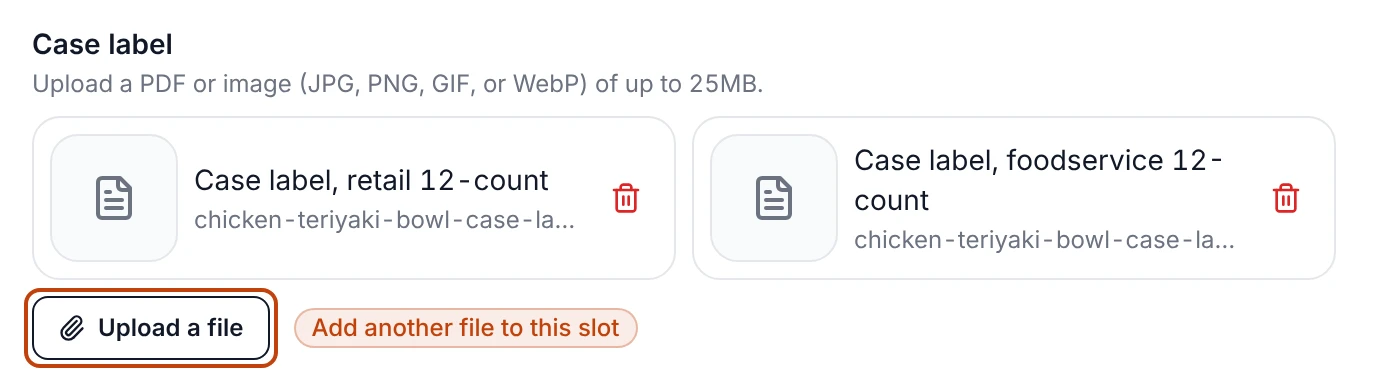
The Case label slot on a product's edit page, holding the retail and the foodservice artwork for the same case. Every slot works this way: the files it holds, then Upload a file to add another.
2
Name it the way your plant says it
A file arrives under its own filename. Select that name to edit it in place,
type what the file actually is — Case label, retail 12-count — and press
Enter. Esc leaves it as it was.
3
Open it or take it off
Select the file's thumbnail or icon to open it in a new tab. The trash button
beside it takes the file off the product; the slot keeps the rest.
See a product's stock by location
Editing tells you what a product is; to see what you actually hold of it, look
at its stock. Back on the products list, the stock-status badge on each row —
In Stock, Needs Reorder, or Out of Stock — is a link. Select it to
open a panel listing every
of that product on hand, each with its location,
quantity, and expiry date. The panel is read-only: it shows where the product
sits, not a place to move it.
Keep a product in sync with Odoo
If your company is connected to Odoo, the products list gains an Odoo status
column and a Sync all with Odoo action. Running it checks whether the on-hand
Bettr holds for each linked product matches what Odoo has, and marks every product
as In sync, Divergence, or Not checked so you can see where the two
have drifted apart. On a product that's linked to Odoo, the edit page also carries
an Open in Odoo link to its record there. Connecting Odoo is a company
setting — see Connect Odoo.