Open the spec sheet a pack sells under, fill the gaps that block it, sign it off in one act, print it for the buyer, and renew it when the recipe or the pack's record changes.
On this page
Was this helpful?
Real help from real food people
Chef Diego runs a real food plant. If this page didn't get you there, tell us — a person reads every message.
A retail buyer's quality team wants the spec sheet for the tub before they will
open the account, and the last one you sent was a Word file somebody retyped from
the recipe — with the case weight from before you changed the pack. Bettr writes
the sheet instead, out of the recipe and the pack's own product record, so the
numbers on it are the numbers in the system. You open it from
Recipes, under
Product specs. Kitchen+
Each pack the dish sells under gets its own
: the same recipe under each, that pack's own facts on
top.
Open the sheet for a pack
1
Open the recipe and its Product specs
From Recipes,
open the recipe and select Product specs from the row of cards under the
yield block.
2
Go to the Products tab
Products lists one panel per pack the recipe sells under. Find the pack
you're sending — they're peers, so the one you want is the one the buyer
ordered, not the first in the list.
3
Select Open the spec sheet
Under the pack's facts, the Spec sheet block says where that pack's
approval stands — No sheet approved for this pack yet, or who approved it
and from which version — and Open the spec sheet writes it out.
Nothing about the sheet is stored. It's written from the recipe version and the
product record every time you open it, so a sheet you opened last month and one
you open today can differ — and the second one is the true one.
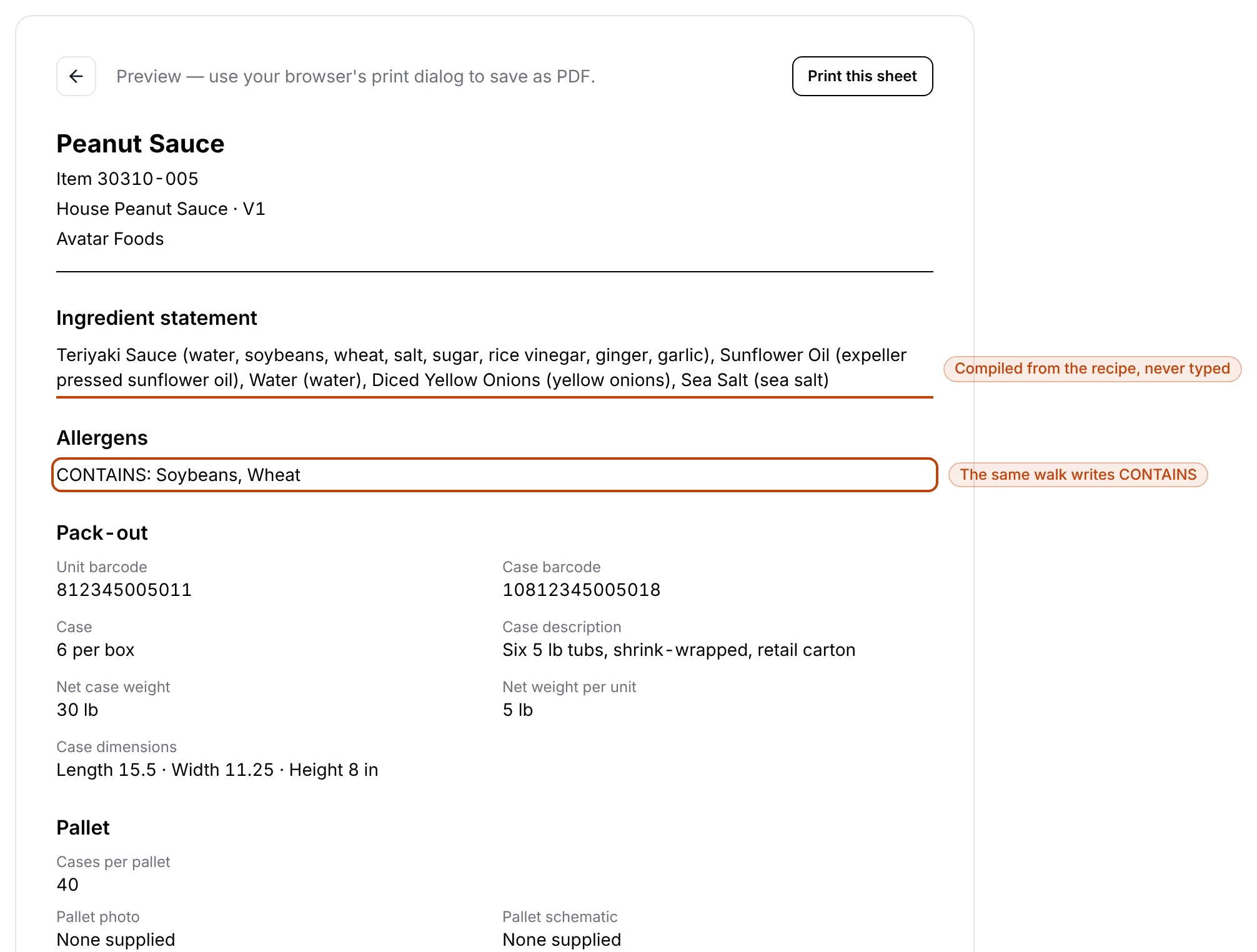
The sheet for one pack: the ingredient statement compiled from the recipe tree with each purchased ingredient's own composition in parentheses, the CONTAINS line derived from the same walk, and the pack-out read off the product record.
What the sheet carries
Reading down: the pack's name and item number, the recipe and the version it was
written from, and your company. Then, in blocks:
Ingredient statement — the recipe walked from the top down, sub-recipes
opened in place, purchased ingredients ordered heaviest first, each carrying its
own composition in parentheses.
Allergens — a CONTAINS line off the same walk, so the statement and the
allergens can't disagree with each other.
Pack-out and Pallet — the barcodes, the case, the net weights, the case
dimensions, the cases per pallet, and the pallet photo and schematic, all read
off the pack's product record.
Storage and handling — where the pack is stored, read off its product
record, then the shelf life, the shelf life you guarantee on delivery, and the
storage, handling and heating instructions, all read off the recipe's Product
facts.
Supplied artwork — the product photo, nutrition panel, case label and
master case label filed on the product record. Bettr prints what your designer
and your lab sent you; it doesn't draw a nutrition panel or a label for you.
The footer — who approved it, on what day, and from which version, or Not
approved yet.
Fill the gaps that block approval
A sheet missing a fact the buyer is owed can be read, but it can't be signed off.
Two holes do that, and the sheet names whichever one it has instead of showing an
approval button at all.
The first is a composition. When any ingredient the recipe reaches has no
ingredient list on its product record, the sheet names those products —
Atlantic Salmon Fillets has no ingredient statement on its record.
1
Open each product it names
From Inventory → Products, open the product and go to the
Specifications tab.
2
Write the composition and save
Fill in the Ingredient list — what that product is made of, the way its
own label reads it — and select Save. Editing a product is covered in
Edit a product and attach its
documents.
3
Come back to the sheet
Reopen the sheet. The warning is gone, the composition is in the statement in
its place by weight, and the approval button is there.
The second hole is storage. A pack nobody has said where to store reads
Chicken Teriyaki Bowl has no storage type on its record, and Stored, at the
top of Storage and handling, is an em dash. Open that pack from Inventory
→ Products, tick where it lives on the Allergens & Storage tab, save, and
reopen the sheet.
The block is not just the button
Bettr refuses the approval itself, not only the button that asks for it — a
sheet with either hole in it can't be signed off by any route. That is
deliberate: the statement is what the customer's label is built from, and the
storage line is how they are told to keep it, so a gap in either is a gap on
the paperwork you signed.
Approve it
1
Read the sheet the way the buyer will
Check the statement, the CONTAINS line, the case weights and the shelf
life. Everything on the page came from the recipe or the product record, so
anything wrong here is wrong there — fix it at the source and reopen.
2
Select Approve this sheet
One act, by someone whose role can change recipes. The button leaves the page
and the footer stamps your name, the day, and the version the sheet was
written from.
The approval belongs to that pack, not to the dish: a recipe selling under two
packs is two sheets and two signatures.
Print it for the buyer
Print this sheet hands the page to your browser's print dialog, which is
where you save it as a PDF. What prints is the sheet alone — no app chrome, no
preview bar, no buttons — with each block kept whole across a page break.
Renew it when something changes
Bettr never lets an approved sheet and what feeds it drift apart quietly. Two
things put the sheet back in front of you, and both say which one it was:
A newer approved version — V2 is the approved version now — this sheet was
approved from V1.
A changed product record — The product record changed after this sheet was
approved. Any edit to the pack counts: a new case weight, a barcode, a case
label uploaded, the cases per pallet.
The warning shows on the sheet and, in the same words, on the Spec sheet
block back on the Products tab, so you can see which packs are asking without
opening each one. Read the sheet again and select Renew this approval; the
footer restamps with today and the version it's now written from.
View-only access
If your role can view recipes but not change them, you can open and print any
pack's sheet and read where its approval stands. Approving and renewing need
Edit recipes — see the
Recipes reference.