Name a recipe, then fill in its ingredients, its batch yield and its steps on the page itself — the master every run works from.
On this page
Was this helpful?
Real help from real food people
Chef Diego runs a real food plant. If this page didn't get you there, tell us — a person reads every message.
Your best marinara lives in one cook's head and a splattered binder — the amounts,
the order they go in the kettle, what a batch is supposed to make. A recipe in
Bettr turns that into the master every batch runs from, and it is one page: the
ingredient table, the batch numbers under it, and the sign-off it needs before the
floor is allowed to make it. Starting one takes a name. You build the rest right
where you read it, on
Recipes.
Kitchen+
Name the recipe
1
Open Recipes and select New
Go to Recipes
under Production and select New. There is one card to fill in, and it
asks four things at most.
2
Choose the kind
Final recipe makes a product the plant sells. Sub-recipe makes a
, which other
recipes then pick as an ingredient.
3
Pick the catalog product, on a final recipe
A final recipe names the Catalog product a batch becomes. Picking it fills
the Name for you, once — after that the name is the recipe's own and you
can write over it, because the dish and the listing you sell it under are not
always the same words. A product another recipe already sells is greyed out in
the picker, reading Already sells under that recipe's name: one product
answers to one recipe. A sub-recipe has no catalog product and is not asked
for one.
4
Name it, choose the department, and select Create
Type the Name, choose the Department that makes it, and select
Create. Bettr opens the recipe on V1, a draft, reading No
ingredients yet over an Add ingredient button.
Nothing else is asked at the start. A recipe begins as an idea, and an idea needs
a name and a page — the batch yield, the steps, the shelf life and the approvers
are all filled in from the page once it exists.
One name, once
Bettr refuses a name another recipe in the company already carries, in any
capitalization and ignoring stray spaces: A recipe already goes by that
name. Retired recipes count too. The name belongs to the dish, not to a
customer's listing of it, so one recipe can feed several products you sell.
Fill in the ingredients
The page opens on its ingredient table, and the table is where you type. There is
no edit mode to enter and no form to open: select a quantity and it becomes an
input, right where the number was.
1
Select Add ingredient
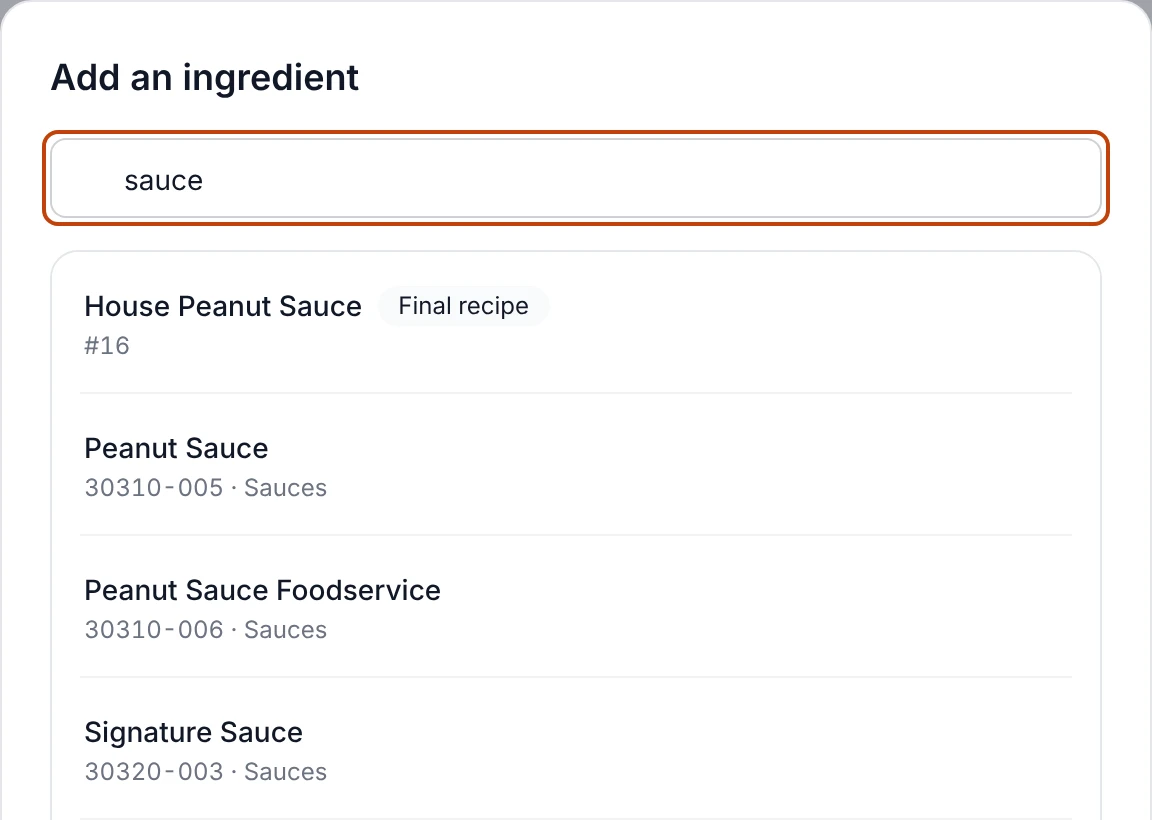
Under the table, Add ingredient opens one list holding your catalog and
your own recipes together, searched by name or code. Every recipe in it is
marked as what it is — Sub-recipe or Final recipe — so you can tell
the bought bacon from the base you make, and a dish you also sell on its own
can still be a line in another dish. Pick one and the line lands at the
bottom of the table, its quantity sitting at 0 until you type one.
2
Type the quantity, then the unit
Select the line's Quantity and type what one batch keeps. Enter commits
it, and so does clicking away; Escape puts the old number back. Tab moves
to the next cell across and then down the table, so a whole card can be typed
without touching the mouse. Every number that depends on what you typed — the
share of the batch, the cost, the total weight — moves as you type.
3
Add the loss where handling costs you some
Where a line loses part of what goes in, type it in Loss — a percentage or
a weight, whichever way you think. Either answer is the whole answer: Bettr
shows both from there, 5% ≈ 4 lb of 80 lb, naming the weigh-out the pounds
come out of, and works out the Weigh out that delivers the quantity you
asked for.
Add ingredient searches the catalog and your own recipes in one list, each recipe marked as what it is. Type to narrow it.
A line is measured in a weight — g, kg, oz, lb — or in the plain
count, un. Those five are the whole list. Your catalog can carry dz for a
product, but a recipe line never offers it, because a dozen is twelve and the
batch arithmetic needs the count itself.
The row menu at the end of an ingredient's name — Row actions — carries Move
up, Move down, and Remove. Removal is immediate, with nothing to
confirm: a line is one row, and adding it back is two taps.
The picker never dead-ends
When the product you need isn't in the catalog yet — the fresh tomatillo the
plant holds but the list doesn't — the empty search offers Add it to the
catalog. Give it a name, a product code, and the unit it's measured in, and it
lands in the row you were filling. Nobody has priced it yet, so the line's
Cost reads Unknown until the product record carries one: a gap you can
see, rather than a zero that would flatter the batch.
Say what a batch makes
Under the table, the Yield block carries the numbers a batch is judged by.
Batch yield — the
, as a cooked test batch measured it, with the unit beside it.
Leave it until that batch exists; the tile reads Not measured yet and says
to cook one. Signing the version off is the act that insists on the number.
Total ingredient weight — the weigh-outs added up. Derived, never typed.
Yield gain or loss — what came out against what went in. On a recipe
measured by count, Weight per unit stands in its place.
Desired batch size — the lever, below.
Beside the Yield heading sits where this recipe carries its loss. Loss per
ingredient gives every line its own loss column, for a card assembled piece by
piece. Loss per recipe replaces those with one Batch loss tile, for a pot
where nobody can say which ingredient the water left. Switching modes doesn't
erase the line losses you already typed — they go quiet, and come back if the mode
does.
One recipe, any batch size
Desired batch size is a lever, not part of the formula. Say what you want a
batch to make and the whole table answers for that batch — every quantity, every
weigh-out, and the cost — with a line at the top saying what it's scaled to and
a way back to the recipe's own numbers. Scaling is looking, so it never moves
what production runs, and it stays live even on an approved version.
Write how the batch is made
The card says what goes in; the steps say what to do with it. Below the yield
block, select Steps. That page is typed the same way the table is — no editor
to open, no step to close and reopen.
1
Select Add a step
A blank step lands at the bottom of the list, numbered, reading Say what this
step does.
2
Say what the step does
Select the instruction and write it the way you'd say it out loud — Weigh the
teriyaki and the salt into the mixer, then fold the prep base through by hand
until the colour is even. Enter commits it, and so does clicking away.
3
Name the department and what it runs on
Department starts at Same as recipe and takes any of your departments
when a step happens somewhere else — the packing step in Logistics on a recipe
Production owns. Runs on then offers that department's machines — a
kettle, a chiller — plus every container the plant has registered, wherever it
is parked, because a white tote travels. Change the department and the
machines follow it.
4
Say the size the step works at
Size is Range or Fixed. A range takes a smallest and a largest —
mix anything from 20 to 150 lb — and a fixed step takes one number, like the
40 lb that goes into a cooling bin. Say that number: a fixed step with no size
asks for one until it has one, and the sign-off waits on it. If the batch the
recipe makes falls outside a step's range, the step says so beside it.
5
Fill in the rest of the numbers
Temperature takes a low and a high with °F or °C beside them,
Tolerance the percentage the step may drift by, and Duration the
minutes one batch takes. Leave any of them empty if the step doesn't have one.
Tick Weigh this step where the floor has to put the batch on a scale.
One step on a draft: the instruction, the department and equipment it runs on, the size it works at, and its temperature, tolerance and duration.
The row menu at the end of a step's instruction — Row actions — carries Move
up, Move down, and Remove, the same as an ingredient line.
Under the steps, How the recipe is made in general takes what holds for the
whole batch rather than one step. Both the steps and the recipe can carry named
photos, videos and links — see
Attach recipe documents, photos and videos
— and a step's instruction can carry a version in each language your floor reads,
covered in
Set the languages your floor reads.
The rest of the recipe is one row down
Beside Steps, two more sections carry what isn't the card:
Product specs — three tabs over the facts a spec sheet prints: the tree
of what this recipe uses and what uses it, food safety with the allergens
and the ingredient statement compiled from the ingredients plus the control
points and quality checks you declare, and the products it sells under, each
with its own generated spec sheet.
Run configuration — what this recipe is and what a run enforces: whether it
runs on a continuous line and the levels its output is counted in, the cooking
and cooling logs, how the floor weighs, and whether a batch must record its
output before the next one starts.
Name who signs it off
The line under the recipe's name says what the draft is waiting on. A new recipe
waits on nobody yet, so all it offers is Name who signs — every role you tick
there has to approve a version before the floor can run it. You can leave it for
later; nothing stops you building the card first.
Your recipe starts at V1
Creating the recipe creates its first version in the same act, and the chip beside
the name reads V1 · Draft until the sign-offs arrive. The recipe itself is
Active from the start; that badge is its lifecycle, not its approval.
So creating is the start, not the finish. Keep working V1 as long as you like —
nothing you type reaches the floor, because a run only ever pulls the recipe's
approved version. When the card is settled, collect the sign-offs it needs:
Version and approve a recipe
walks the rest.